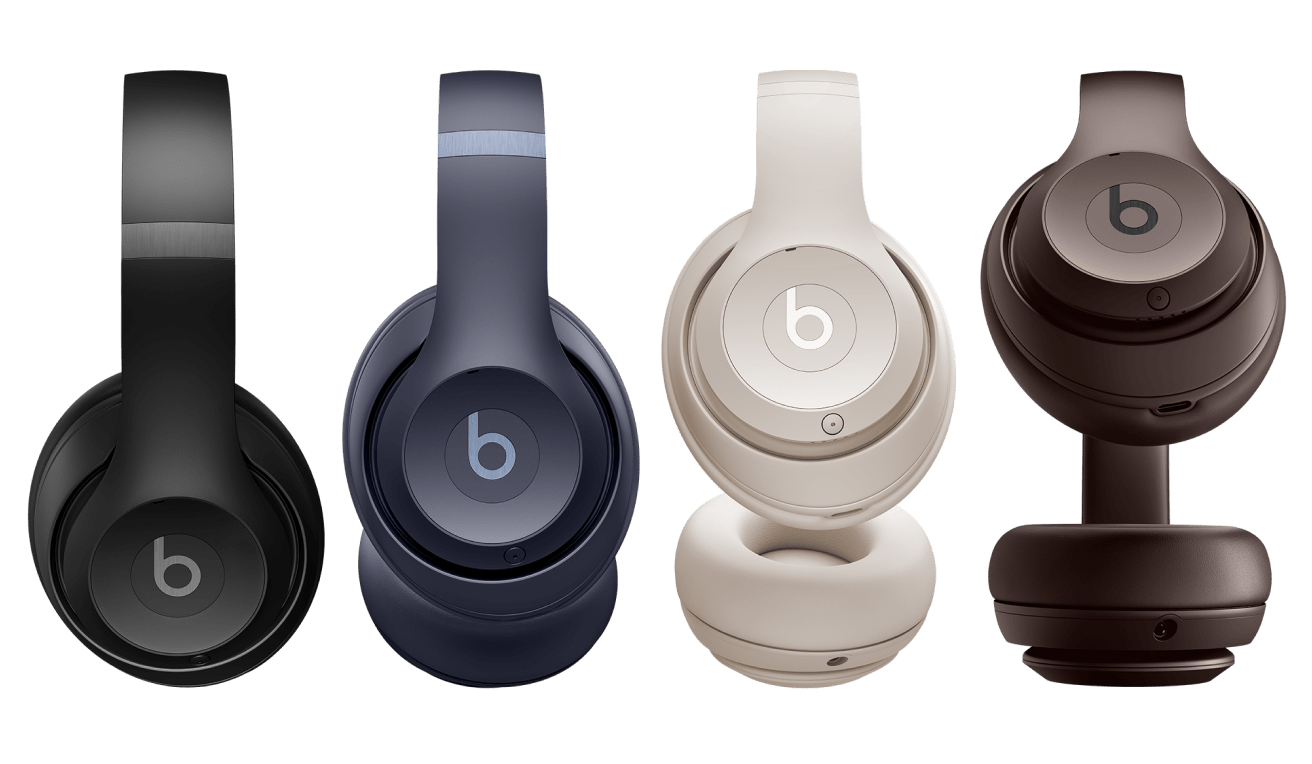
The first time you power on Beats Studio Pro, pairing mode will be enabled automatically. On iPhone running the latest iOS, simply hold the headphones near an unlocked phone and follow the on-screen instructions. Or, go to the Bluetooth® menu and select "Beats Studio Pro".
The first time you power on Beats Studio Pro, pairing mode will be enabled automatically. On iPhone running the latest iOS, simply hold the headphones near an unlocked phone and follow the on-screen instructions. Or, go to the Bluetooth® menu and select "Beats Studio Pro".
The first time you power on Beats Studio Pro, pairing mode will be enabled automatically. On iPhone running the latest iOS, simply hold the headphones near an unlocked phone and follow the on-screen instructions. Or, go to the Bluetooth® menu and select "Beats Studio Pro".
The first time you power on Beats Studio Pro, pairing mode will be enabled automatically. To pair using Google Fast Pair, an on-screen, one-touch pairing prompt will appear on your Android device. For older Android devices or to pair manually, use the Beats app or pair in the Bluetooth® menu by selecting “Beats Studio Pro”. Download the Beats app from your app store or directly from beatsbydre.com/mobile-apps for compatible devices.
The first time you power on Beats Studio Pro, pairing mode will be enabled automatically. To pair using Google Fast Pair, an on-screen, one-touch pairing prompt will appear on your Android device. For older Android devices or to pair manually, use the Beats app or pair in the Bluetooth® menu by selecting “Beats Studio Pro”. Download the Beats app from your app store or directly from beatsbydre.com/mobile-apps for compatible devices.
The first time you power on Beats Studio Pro, pairing mode will be enabled automatically. To pair using Google Fast Pair, an on-screen, one-touch pairing prompt will appear on your Android device. For older Android devices or to pair manually, use the Beats app or pair in the Bluetooth® menu by selecting “Beats Studio Pro”. Download the Beats app from your app store or directly from beatsbydre.com/mobile-apps for compatible devices.
If you have previously paired with an iPhone and the Mac is connected to the same iCloud account, your Beats Studio Pro will automatically pair with your Mac. Simply select your headphones as the sound output in the Control Center or Apple menu > System Settings > Sound. If the Mac is not connected to your iCloud account, make sure that you have turned on Bluetooth® on your Mac. Hold your Beats Studio Pro next to your Mac. Press and hold the System button on the right ear cup until the Fuel Gauge LEDs start to flash. Open the Bluetooth® menu on your Mac and choose “Beats Studio Pro”.
If you have previously paired with an iPhone and the Mac is connected to the same iCloud account, your Beats Studio Pro will automatically pair with your Mac. Simply select your headphones as the sound output in the Control Center or Apple menu > System Settings > Sound. If the Mac is not connected to your iCloud account, make sure that you have turned on Bluetooth® on your Mac. Hold your Beats Studio Pro next to your Mac. Press and hold the System button on the right ear cup until the Fuel Gauge LEDs start to flash. Open the Bluetooth® menu on your Mac and choose “Beats Studio Pro”.
If you have previously paired with an iPhone and the Mac is connected to the same iCloud account, your Beats Studio Pro will automatically pair with your Mac. Simply select your headphones as the sound output in the Control Center or Apple menu > System Settings > Sound. If the Mac is not connected to your iCloud account, make sure that you have turned on Bluetooth® on your Mac. Hold your Beats Studio Pro next to your Mac. Press and hold the System button on the right ear cup until the Fuel Gauge LEDs start to flash. Open the Bluetooth® menu on your Mac and choose “Beats Studio Pro”.
If you need to initiate pairing mode again, hold down the System button on the right ear cup until the Fuel Gauge LEDs begin to flash. Beats Studio Pro is now ready to pair.
If you need to initiate pairing mode again, hold down the System button on the right ear cup until the Fuel Gauge LEDs begin to flash. Beats Studio Pro is now ready to pair.
If you need to initiate pairing mode again, hold down the System button on the right ear cup until the Fuel Gauge LEDs begin to flash. Beats Studio Pro is now ready to pair.
To toggle between listening modes, simply press the System button twice. Beats Studio Pro will rotate between ANC and Transparency.
To toggle between listening modes, simply press the System button twice. Beats Studio Pro will rotate between ANC and Transparency.
To toggle between listening modes, simply press the System button twice. Beats Studio Pro will rotate between ANC and Transparency.
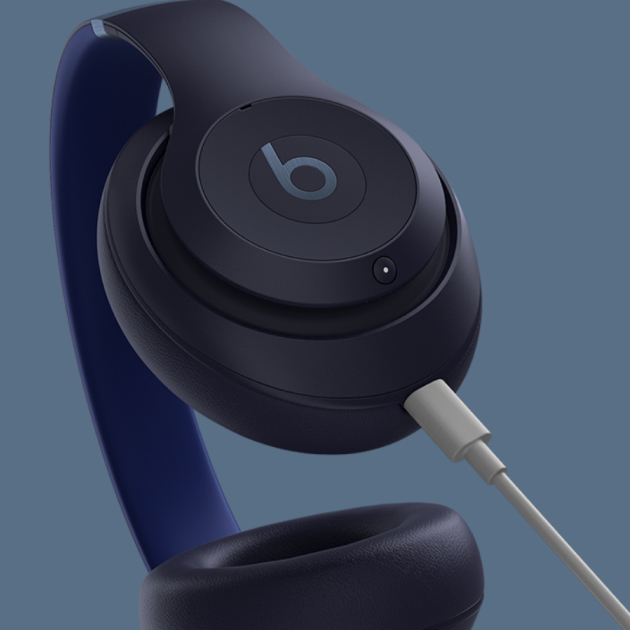
To charge your Beats Studio Pro, connect the headphones to a power source using the USB-C cable included. (Note: USB-C power adapter sold separately.) The Fuel Gauge LEDs will illuminate while the headphone is charging.
To charge your Beats Studio Pro, connect the headphones to a power source using the USB-C cable included. (Note: USB-C power adapter sold separately.) The Fuel Gauge LEDs will illuminate while the headphone is charging.
To charge your Beats Studio Pro, connect the headphones to a power source using the USB-C cable included. (Note: USB-C power adapter sold separately.) The Fuel Gauge LEDs will illuminate while the headphone is charging.
To check the battery life, simply press the System button on the right ear cup once. The Fuel Gauge LEDs will display the level of charge remaining.
To check the battery life, simply press the System button on the right ear cup once. The Fuel Gauge LEDs will display the level of charge remaining.
To check the battery life, simply press the System button on the right ear cup once. The Fuel Gauge LEDs will display the level of charge remaining.
Beats Studio Pro can provide up to 40 hours of listening time with ANC or Transparency turned off, or up to 24 hours of listening time with ANC turned on.
Beats Studio Pro can provide up to 40 hours of listening time with ANC or Transparency turned off, or up to 24 hours of listening time with ANC turned on.
Beats Studio Pro can provide up to 40 hours of listening time with ANC or Transparency turned off, or up to 24 hours of listening time with ANC turned on.
Turn on Beats Studio Pro by holding down the System button until the Fuel Gauge LEDs illuminate. To turn the headphones off, hold down the same System button until the Fuel Gauge LEDs shut off.
Turn on Beats Studio Pro by holding down the System button until the Fuel Gauge LEDs illuminate. To turn the headphones off, hold down the same System button until the Fuel Gauge LEDs shut off.
Turn on Beats Studio Pro by holding down the System button until the Fuel Gauge LEDs illuminate. To turn the headphones off, hold down the same System button until the Fuel Gauge LEDs shut off.
On Apple devices, you can activate Siri hands-free by saying, “Hey Siri”. Or, press and hold the ‘b’ button to activate your voice assistant on your iOS or Android device.
On Apple devices, you can activate Siri hands-free by saying, “Hey Siri”. Or, press and hold the ‘b’ button to activate your voice assistant on your iOS or Android device.
On Apple devices, you can activate Siri hands-free by saying, “Hey Siri”. Or, press and hold the ‘b’ button to activate your voice assistant on your iOS or Android device.
Use the included 3.5mm cable to connect Beats Studio Pro to a standard audio source. Beats Studio Pro also offers USB-C audio, so you can stream audio or take phone calls by connecting the headphone to a compatible source using the USB-C cable included.
Use the included 3.5mm cable to connect Beats Studio Pro to a standard audio source. Beats Studio Pro also offers USB-C audio, so you can stream audio or take phone calls by connecting the headphone to a compatible source using the USB-C cable included.
Use the included 3.5mm cable to connect Beats Studio Pro to a standard audio source. Beats Studio Pro also offers USB-C audio, so you can stream audio or take phone calls by connecting the headphone to a compatible source using the USB-C cable included.
When paired with Apple devices, Beats Studio Pro will automatically play back tracks available in Dolby Atmos from Apple Music. Head tracking is only available when paired with Apple devices and must be enabled/disabled from the device. Spatial Audio personalization requires an iPhone X or later with TrueDepth camera. Beats Studio Pro can also play back tracks available in Dolby Atmos when using Apple Music on an Android device.
When paired with Apple devices, Beats Studio Pro will automatically play back tracks available in Dolby Atmos from Apple Music. Head tracking is only available when paired with Apple devices and must be enabled/disabled from the device. Spatial Audio personalization requires an iPhone X or later with TrueDepth camera. Beats Studio Pro can also play back tracks available in Dolby Atmos when using Apple Music on an Android device.
When paired with Apple devices, Beats Studio Pro will automatically play back tracks available in Dolby Atmos from Apple Music. Head tracking is only available when paired with Apple devices and must be enabled/disabled from the device. Spatial Audio personalization requires an iPhone X or later with TrueDepth camera. Beats Studio Pro can also play back tracks available in Dolby Atmos when using Apple Music on an Android device.
When Beats Studio Pro is connected to a compatible source device via USB-C, it will appear as a standard USB audio device — enabling you to stream audio or take phone calls while simultaneously charging the headphone. While using USB-C audio, press the System button twice to switch between three EQ-optimized sound profiles: Beats Signature, Entertainment and Conversation. The Fuel Gauge LEDs will illuminate one, two or three segments correlating to each respective sound profile.
When Beats Studio Pro is connected to a compatible source device via USB-C, it will appear as a standard USB audio device — enabling you to stream audio or take phone calls while simultaneously charging the headphone. While using USB-C audio, press the System button twice to switch between three EQ-optimized sound profiles: Beats Signature, Entertainment and Conversation. The Fuel Gauge LEDs will illuminate one, two or three segments correlating to each respective sound profile.
When Beats Studio Pro is connected to a compatible source device via USB-C, it will appear as a standard USB audio device — enabling you to stream audio or take phone calls while simultaneously charging the headphone. While using USB-C audio, press the System button twice to switch between three EQ-optimized sound profiles: Beats Signature, Entertainment and Conversation. The Fuel Gauge LEDs will illuminate one, two or three segments correlating to each respective sound profile.
Firmware updates will occasionally be made available to enable new features or improve the product experience. These updates are delivered automatically as you use your Beats Studio Pro when connected to an Apple device connected to Wi-Fi and running the latest operating system software. On an Android device, use the Beats app to check and update the firmware version for your Beats Studio Pro.
Firmware updates will occasionally be made available to enable new features or improve the product experience. These updates are delivered automatically as you use your Beats Studio Pro when connected to an Apple device connected to Wi-Fi and running the latest operating system software. On an Android device, use the Beats app to check and update the firmware version for your Beats Studio Pro.
Firmware updates will occasionally be made available to enable new features or improve the product experience. These updates are delivered automatically as you use your Beats Studio Pro when connected to an Apple device connected to Wi-Fi and running the latest operating system software. On an Android device, use the Beats app to check and update the firmware version for your Beats Studio Pro.
You can use Find My on your iPhone, iPad, Mac, or Apple Watch to see your Beats last connected location on a map. You can also find your Beats on the web at iCloud.com/find.
You can use Find My on your iPhone, iPad, Mac, or Apple Watch to see your Beats last connected location on a map. You can also find your Beats on the web at iCloud.com/find.
You can use Find My on your iPhone, iPad, Mac, or Apple Watch to see your Beats last connected location on a map. You can also find your Beats on the web at iCloud.com/find.