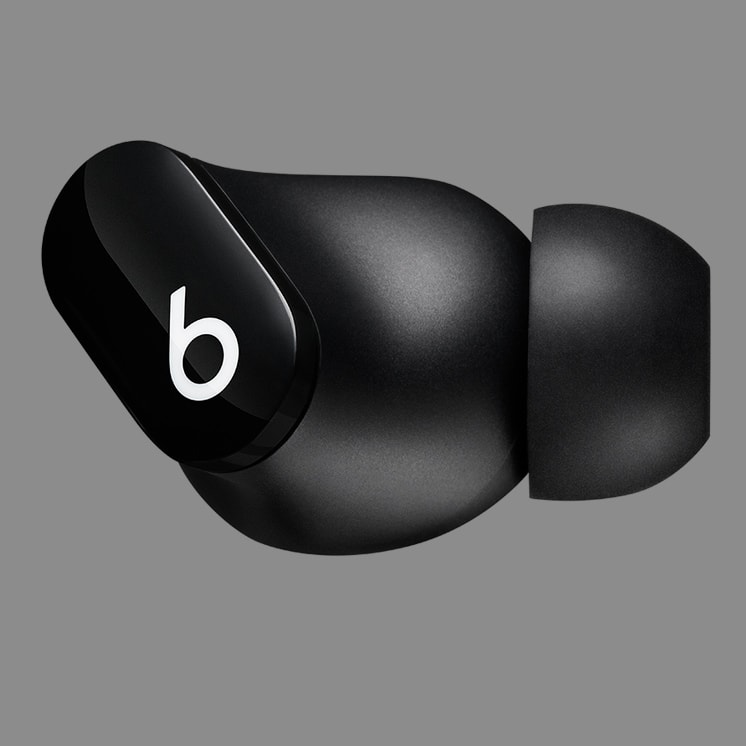
Beats Studio Buds are ready to pair straight out of the box. On an iPhone running the latest iOS, simply open the lid of the case with the earbuds seated in the case, hold near your unlocked phone and follow the on-screen instructions.
Beats Studio Buds are ready to pair straight out of the box. On an iPhone running the latest iOS, simply open the lid of the case with the earbuds seated in the case, hold near your unlocked phone and follow the on-screen instructions.
Beats Studio Buds are ready to pair straight out of the box. On an iPhone running the latest iOS, simply open the lid of the case with the earbuds seated in the case, hold near your unlocked phone and follow the on-screen instructions.
On Android, you can pair your product in a single tap using Google Fast Pair. To pair, simply lift the lid and an on-screen, one-touch pairing prompt will appear on your Android device. For older Android devices or to pair manually, use the Beats app or pair in the Bluetooth® menu by selecting “Beats Studio Buds”. Download the Beats app from your app store or directly from beatsbydre.com/mobile-apps for compatible devices.
On Android, you can pair your product in a single tap using Google Fast Pair. To pair, simply lift the lid and an on-screen, one-touch pairing prompt will appear on your Android device. For older Android devices or to pair manually, use the Beats app or pair in the Bluetooth® menu by selecting “Beats Studio Buds”. Download the Beats app from your app store or directly from beatsbydre.com/mobile-apps for compatible devices.
On Android, you can pair your product in a single tap using Google Fast Pair. To pair, simply lift the lid and an on-screen, one-touch pairing prompt will appear on your Android device. For older Android devices or to pair manually, use the Beats app or pair in the Bluetooth® menu by selecting “Beats Studio Buds”. Download the Beats app from your app store or directly from beatsbydre.com/mobile-apps for compatible devices.
Make sure that you turned on Bluetooth® on your Mac or other device. With the case lid open, hold your Beats Studio Buds next to your Mac or other device. Press and hold the system button on the charging case until the LED blinks. Open the Bluetooth® menu on your Mac or other device. For example, on your Mac, choose Apple menu > System Preferences, then click Bluetooth®. In the list of discovered Bluetooth® devices, tap or click your Beats Studio Buds.
Make sure that you turned on Bluetooth® on your Mac or other device. With the case lid open, hold your Beats Studio Buds next to your Mac or other device. Press and hold the system button on the charging case until the LED blinks. Open the Bluetooth® menu on your Mac or other device. For example, on your Mac, choose Apple menu > System Preferences, then click Bluetooth®. In the list of discovered Bluetooth® devices, tap or click your Beats Studio Buds.
Make sure that you turned on Bluetooth® on your Mac or other device. With the case lid open, hold your Beats Studio Buds next to your Mac or other device. Press and hold the system button on the charging case until the LED blinks. Open the Bluetooth® menu on your Mac or other device. For example, on your Mac, choose Apple menu > System Preferences, then click Bluetooth®. In the list of discovered Bluetooth® devices, tap or click your Beats Studio Buds.
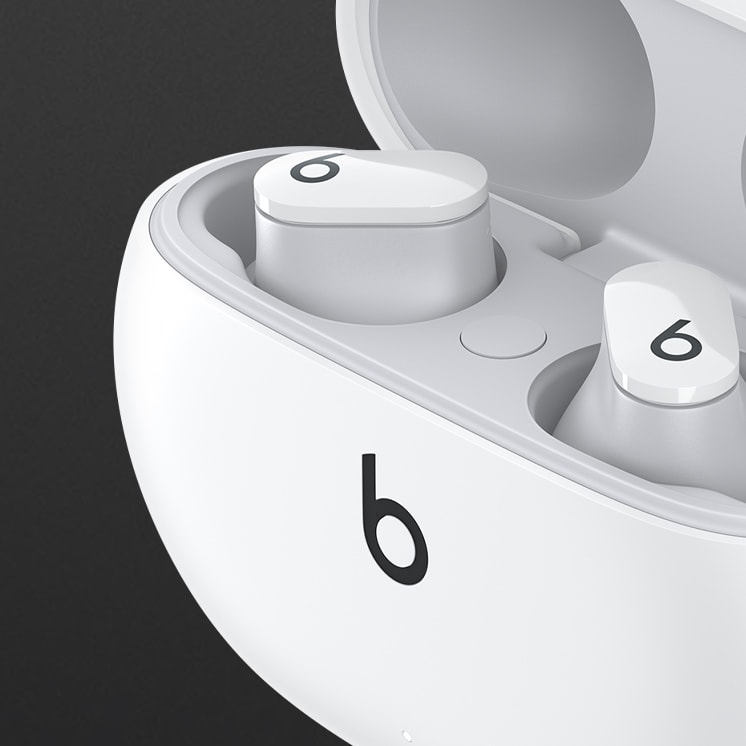
To pair to additional devices, place the earbuds in the case with the lid open. Then hold down the small circular button until the LED begins to flash. Beats Studio Buds are now in pairing mode and can be paired to any standard Bluetooth® device.
To pair to additional devices, place the earbuds in the case with the lid open. Then hold down the small circular button until the LED begins to flash. Beats Studio Buds are now in pairing mode and can be paired to any standard Bluetooth® device.
To pair to additional devices, place the earbuds in the case with the lid open. Then hold down the small circular button until the LED begins to flash. Beats Studio Buds are now in pairing mode and can be paired to any standard Bluetooth® device.
Hold the multi-function button down to toggle between Active Noise Cancelling (ANC) and Transparency mode.
Hold the multi-function button down to toggle between Active Noise Cancelling (ANC) and Transparency mode.
Hold the multi-function button down to toggle between Active Noise Cancelling (ANC) and Transparency mode.
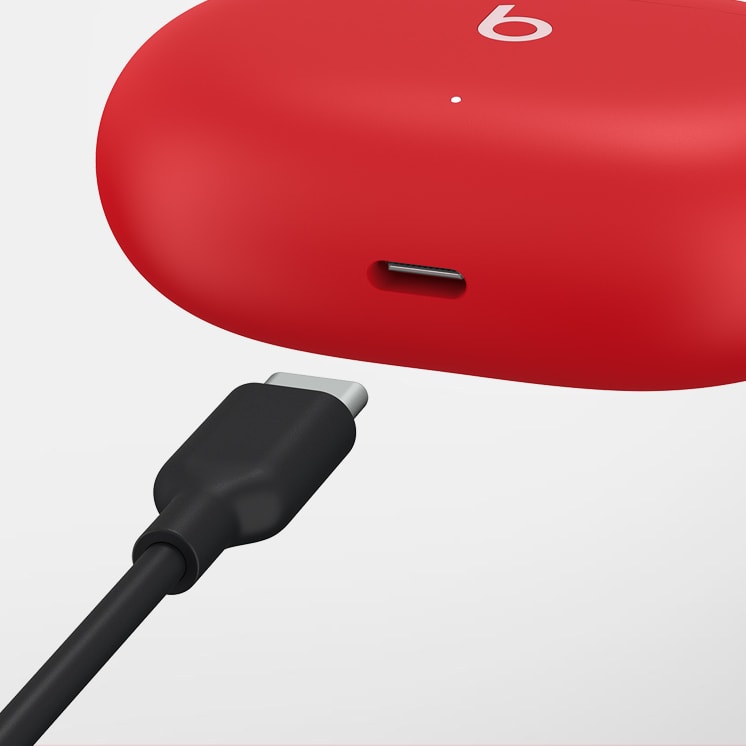
To charge your Beats Studio Buds, place them in the charging case. When you need to charge both the earbuds and the case, place the earbuds in the case and connect the case to a power source with the USB-C cable that's included with your Beats Studio Buds. You can also charge the case without the earbuds. (Note: USB-C power adapter sold separately).
To charge your Beats Studio Buds, place them in the charging case. When you need to charge both the earbuds and the case, place the earbuds in the case and connect the case to a power source with the USB-C cable that's included with your Beats Studio Buds. You can also charge the case without the earbuds. (Note: USB-C power adapter sold separately).
To charge your Beats Studio Buds, place them in the charging case. When you need to charge both the earbuds and the case, place the earbuds in the case and connect the case to a power source with the USB-C cable that's included with your Beats Studio Buds. You can also charge the case without the earbuds. (Note: USB-C power adapter sold separately).
Beats Studio Buds automatically power on when they are removed from the case, and power off when placed back in the case with the lid closed.
Beats Studio Buds automatically power on when they are removed from the case, and power off when placed back in the case with the lid closed.
Beats Studio Buds automatically power on when they are removed from the case, and power off when placed back in the case with the lid closed.
Beats Studio Buds can provide up to 8 hours of listening time with ANC turned off, or up to 5 hours of listening time with ANC turned on. The case holds two additional charges for a combined total of 24 hours with ANC off, or 15 hours with ANC on.
Beats Studio Buds can provide up to 8 hours of listening time with ANC turned off, or up to 5 hours of listening time with ANC turned on. The case holds two additional charges for a combined total of 24 hours with ANC off, or 15 hours with ANC on.
Beats Studio Buds can provide up to 8 hours of listening time with ANC turned off, or up to 5 hours of listening time with ANC turned on. The case holds two additional charges for a combined total of 24 hours with ANC off, or 15 hours with ANC on.
You can configure the multi-function button to either toggle ANC modes or activate voice assistant. To do this in iOS, tap on the product icon in Control Center and select the “Press and hold” menu to choose your preferred function for each earbud. To do this on Android, download the Beats app from Google Play or directly from beatsbydre.com. Once your product is paired in the app, select the “Press and hold” menu in the product page to choose your preferred function for each earbud.
You can configure the multi-function button to either toggle ANC modes or activate voice assistant. To do this in iOS, tap on the product icon in Control Center and select the “Press and hold” menu to choose your preferred function for each earbud. To do this on Android, download the Beats app from Google Play or directly from beatsbydre.com. Once your product is paired in the app, select the “Press and hold” menu in the product page to choose your preferred function for each earbud.
You can configure the multi-function button to either toggle ANC modes or activate voice assistant. To do this in iOS, tap on the product icon in Control Center and select the “Press and hold” menu to choose your preferred function for each earbud. To do this on Android, download the Beats app from Google Play or directly from beatsbydre.com. Once your product is paired in the app, select the “Press and hold” menu in the product page to choose your preferred function for each earbud.
Beats Studio Buds feature a multi-function button on each earbud. Press once to play or pause, twice to skip forward, or three times to skip backward.
Beats Studio Buds feature a multi-function button on each earbud. Press once to play or pause, twice to skip forward, or three times to skip backward.
Beats Studio Buds feature a multi-function button on each earbud. Press once to play or pause, twice to skip forward, or three times to skip backward.
Beats earbuds come with several sets of eartips. Choose the pair that's most comfortable and provides the best sound experience for you. If your earbuds don't already have eartips attached, choose a set of eartips and attach them. Then gently insert the eartip into your ear. You can adjust the eartip until it feels secure. To remove the eartip from your ear, twist the earbud gently and pull it away from your ear.
Beats earbuds come with several sets of eartips. Choose the pair that's most comfortable and provides the best sound experience for you. If your earbuds don't already have eartips attached, choose a set of eartips and attach them. Then gently insert the eartip into your ear. You can adjust the eartip until it feels secure. To remove the eartip from your ear, twist the earbud gently and pull it away from your ear.
Beats earbuds come with several sets of eartips. Choose the pair that's most comfortable and provides the best sound experience for you. If your earbuds don't already have eartips attached, choose a set of eartips and attach them. Then gently insert the eartip into your ear. You can adjust the eartip until it feels secure. To remove the eartip from your ear, twist the earbud gently and pull it away from your ear.
On Apple devices, you can activate Siri hands-free just by saying “Hey Siri”. Or, change the function of the multi-function button to activate your voice assistant within your iOS settings. On Android, download the Beats app to change the function of the multi-function button to activate the default voice assistant on your device.
On Apple devices, you can activate Siri hands-free just by saying “Hey Siri”. Or, change the function of the multi-function button to activate your voice assistant within your iOS settings. On Android, download the Beats app to change the function of the multi-function button to activate the default voice assistant on your device.
On Apple devices, you can activate Siri hands-free just by saying “Hey Siri”. Or, change the function of the multi-function button to activate your voice assistant within your iOS settings. On Android, download the Beats app to change the function of the multi-function button to activate the default voice assistant on your device.
Beats Studio Buds have multiple microphones on each earbud enabling high-quality call performance. Each earbud has 2 microphones dedicated to ANC and 1 dedicated to voice pickup.
Beats Studio Buds have multiple microphones on each earbud enabling high-quality call performance. Each earbud has 2 microphones dedicated to ANC and 1 dedicated to voice pickup.
Beats Studio Buds have multiple microphones on each earbud enabling high-quality call performance. Each earbud has 2 microphones dedicated to ANC and 1 dedicated to voice pickup.
Yes, you can use either earbud independently.
Yes, you can use either earbud independently.
Yes, you can use either earbud independently.
Beats Studio Buds are rated IPX4, which means they are resistant to sweat and water splashing from any direction. The case is not sweat or water resistant.
Beats Studio Buds are rated IPX4, which means they are resistant to sweat and water splashing from any direction. The case is not sweat or water resistant.
Beats Studio Buds are rated IPX4, which means they are resistant to sweat and water splashing from any direction. The case is not sweat or water resistant.
Firmware updates will occasionally be made available to enable new features or improve the product experience. These updates are delivered automatically as you use your Beats Studio Buds when connected to an Apple device connected to Wi-Fi and running the latest operating system software. To stay up to date on an Android device, download the Beats app.
Firmware updates will occasionally be made available to enable new features or improve the product experience. These updates are delivered automatically as you use your Beats Studio Buds when connected to an Apple device connected to Wi-Fi and running the latest operating system software. To stay up to date on an Android device, download the Beats app.
Firmware updates will occasionally be made available to enable new features or improve the product experience. These updates are delivered automatically as you use your Beats Studio Buds when connected to an Apple device connected to Wi-Fi and running the latest operating system software. To stay up to date on an Android device, download the Beats app.
You can use Find My on your iPhone, iPad, Mac, or Apple Watch to see your Beats last connected location on a map. You can also find your Beats on the web at iCloud.com/find.
You can use Find My on your iPhone, iPad, Mac, or Apple Watch to see your Beats last connected location on a map. You can also find your Beats on the web at iCloud.com/find.
You can use Find My on your iPhone, iPad, Mac, or Apple Watch to see your Beats last connected location on a map. You can also find your Beats on the web at iCloud.com/find.