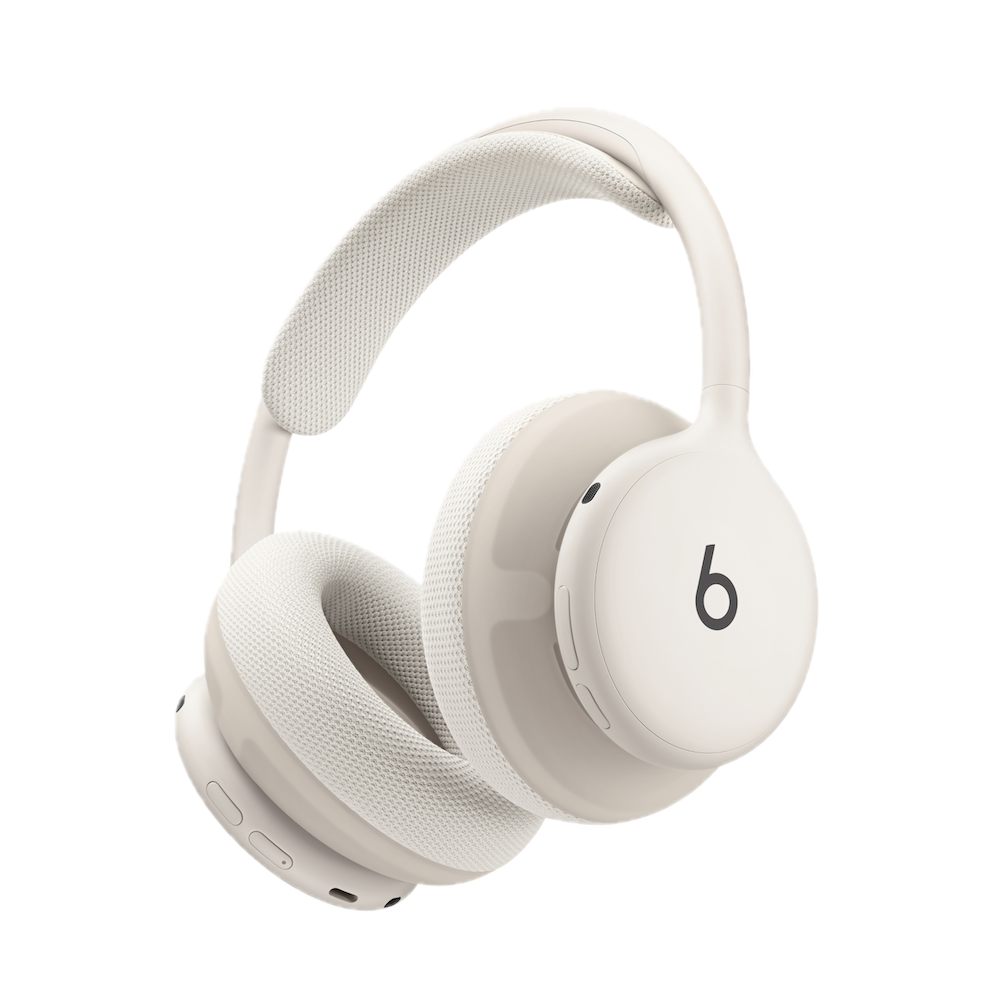
Beats 360
Quick Start Guide
Beats 360
Quick Start Guide
Beats 360
Quick Start Guide
Pair Your Beats 360
Apple and Android™
1. Make sure your device's operating system is up to date, with Bluetooth® turned on.
Tip: For Apple devices, update to the latest OS 27 software and for Android, download or update the Beats app to deliver all the newest features and latest update to your Beats 360.
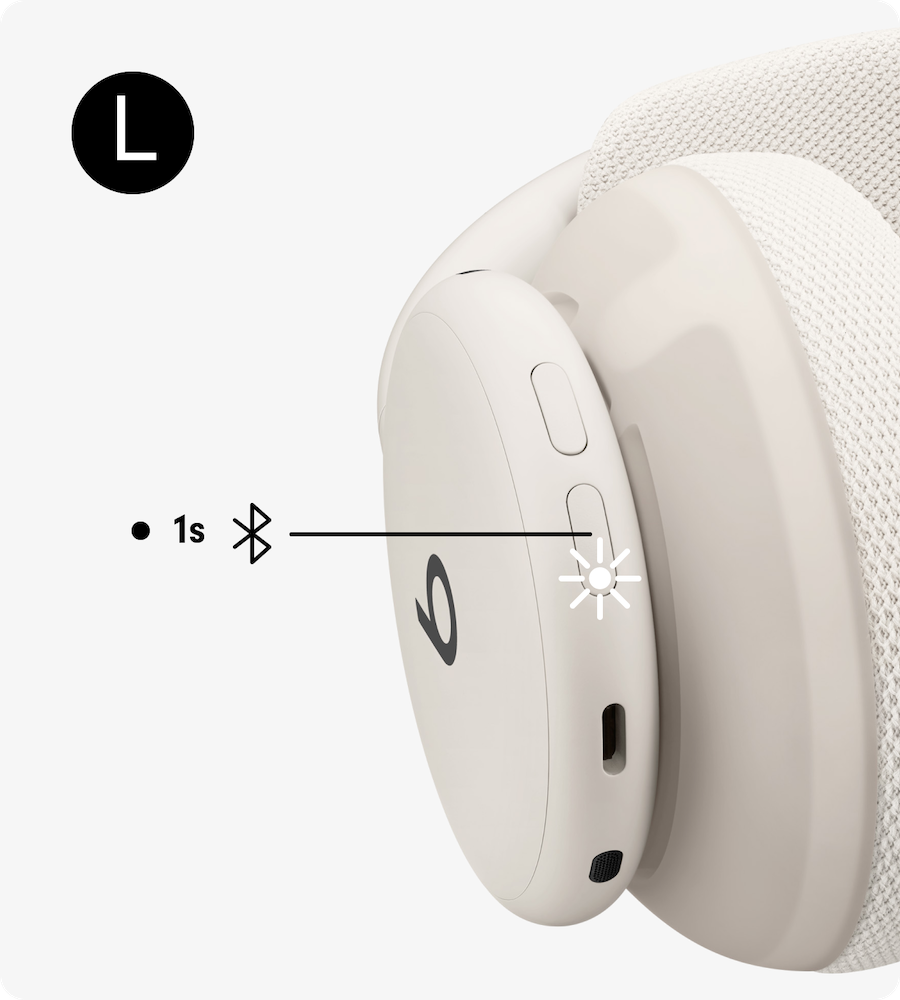
2. To turn on Beats 360, press and hold the power button on the back of the left earcup until the status light on the power button blinks white, then hold it next to your device.
3. When the setup animation appears on your device, follow the onscreen instructions.
Not seeing the animation? You can also pair Beats with your device manually.
Pair Your Beats 360
Apple and Android™
1. Make sure your device's operating system is up to date, with Bluetooth® turned on.
Tip: For Apple devices, update to the latest OS 27 software and for Android, download or update the Beats app to deliver all the newest features and latest update to your Beats 360.
2. To turn on Beats 360, press and hold the power button on the back of the left earcup until the status light on the power button blinks white, then hold it next to your device.
3. When the setup animation appears on your device, follow the onscreen instructions.
Not seeing the animation? You can also pair Beats with your device manually.
Pair Your Beats 360
Apple and Android™
1. Make sure your device's operating system is up to date, with Bluetooth® turned on.
Tip: For Apple devices, update to the latest OS 27 software and for Android, download or update the Beats app to deliver all the newest features and latest update to your Beats 360.
2. To turn on Beats 360, press and hold the power button on the back of the left earcup until the status light on the power button blinks white, then hold it next to your device.
3. When the setup animation appears on your device, follow the onscreen instructions.
Not seeing the animation? You can also pair Beats with your device manually.
Optimize Your Fit
How to Wear
The right fit is about more than comfort and stability. It also affects your listening experience and noise cancellation.
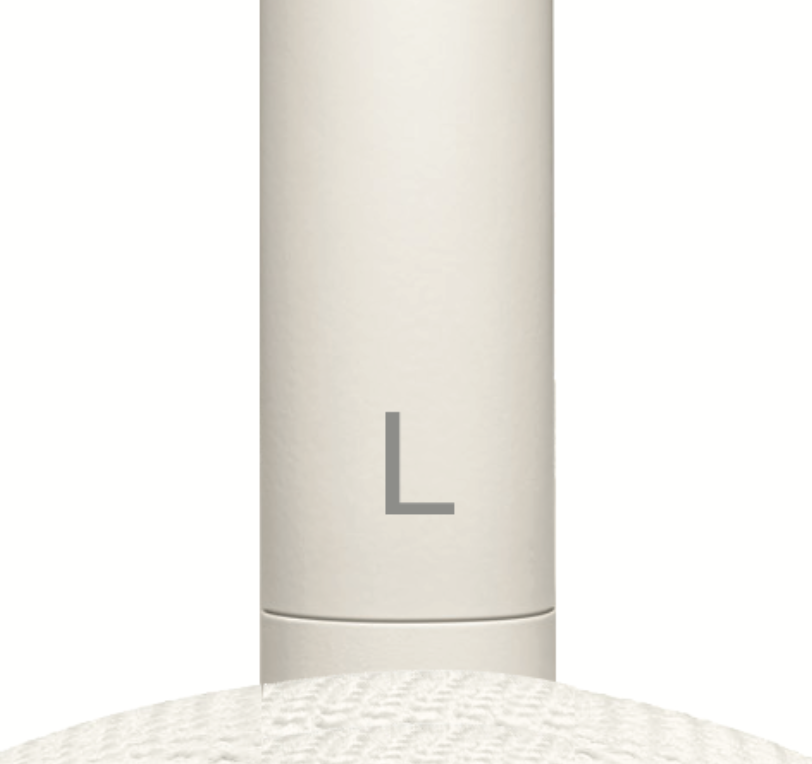
1. Make sure you have the right orientation: left and right indicators are located on the inside of the frame just above the ear cushions.
Tip: You’ll also know you have the correct orientation if you can feel the four controls on the back of the earcups while wearing the headphones. The buttons are placed to be easily reached with your thumbs.
2. Put on your Beats 360 headphones so the ear cushions sit snugly over your ears.
3. Adjust the sliders on each side so the headband cushion touches the top of your head.
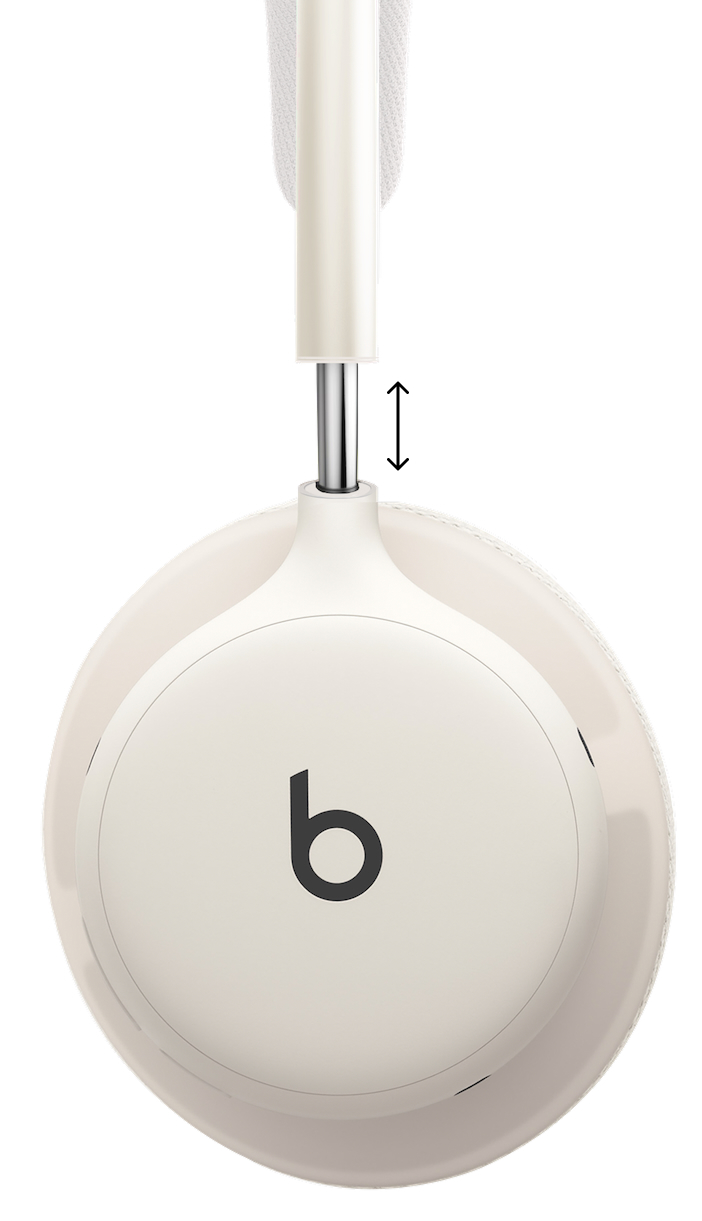
Properly adjusting the sliders ensures maximum comfort, a secure fit, and the best possible noise cancellation.
Optimize Your Fit
How to Wear
The right fit is about more than comfort and stability. It also affects your listening experience and noise cancellation.
1. Make sure you have the right orientation: left and right indicators are located on the inside of the frame just above the ear cushions.
Tip: You’ll also know you have the correct orientation if you can feel the four controls on the back of the earcups while wearing the headphones. The buttons are placed to be easily reached with your thumbs.
2. Put on your Beats 360 headphones so the ear cushions sit snugly over your ears.
3. Adjust the sliders on each side so the headband cushion touches the top of your head.
Properly adjusting the sliders ensures maximum comfort, a secure fit, and the best possible noise cancellation.
Optimize Your Fit
How to Wear
The right fit is about more than comfort and stability. It also affects your listening experience and noise cancellation.
1. Make sure you have the right orientation: left and right indicators are located on the inside of the frame just above the ear cushions.
Tip: You’ll also know you have the correct orientation if you can feel the four controls on the back of the earcups while wearing the headphones. The buttons are placed to be easily reached with your thumbs.
2. Put on your Beats 360 headphones so the ear cushions sit snugly over your ears.
3. Adjust the sliders on each side so the headband cushion touches the top of your head.
Properly adjusting the sliders ensures maximum comfort, a secure fit, and the best possible noise cancellation.
Get to Know Your Headphone
On-device Controls
Beats 360 has four on-device controls on the back of the earcups that you can easily control with your thumbs.
Get to Know Your Headphone
On-device Controls
Beats 360 has four on-device controls on the back of the earcups that you can easily control with your thumbs.
Get to Know Your Headphone
On-device Controls
Beats 360 has four on-device controls on the back of the earcups that you can easily control with your thumbs.
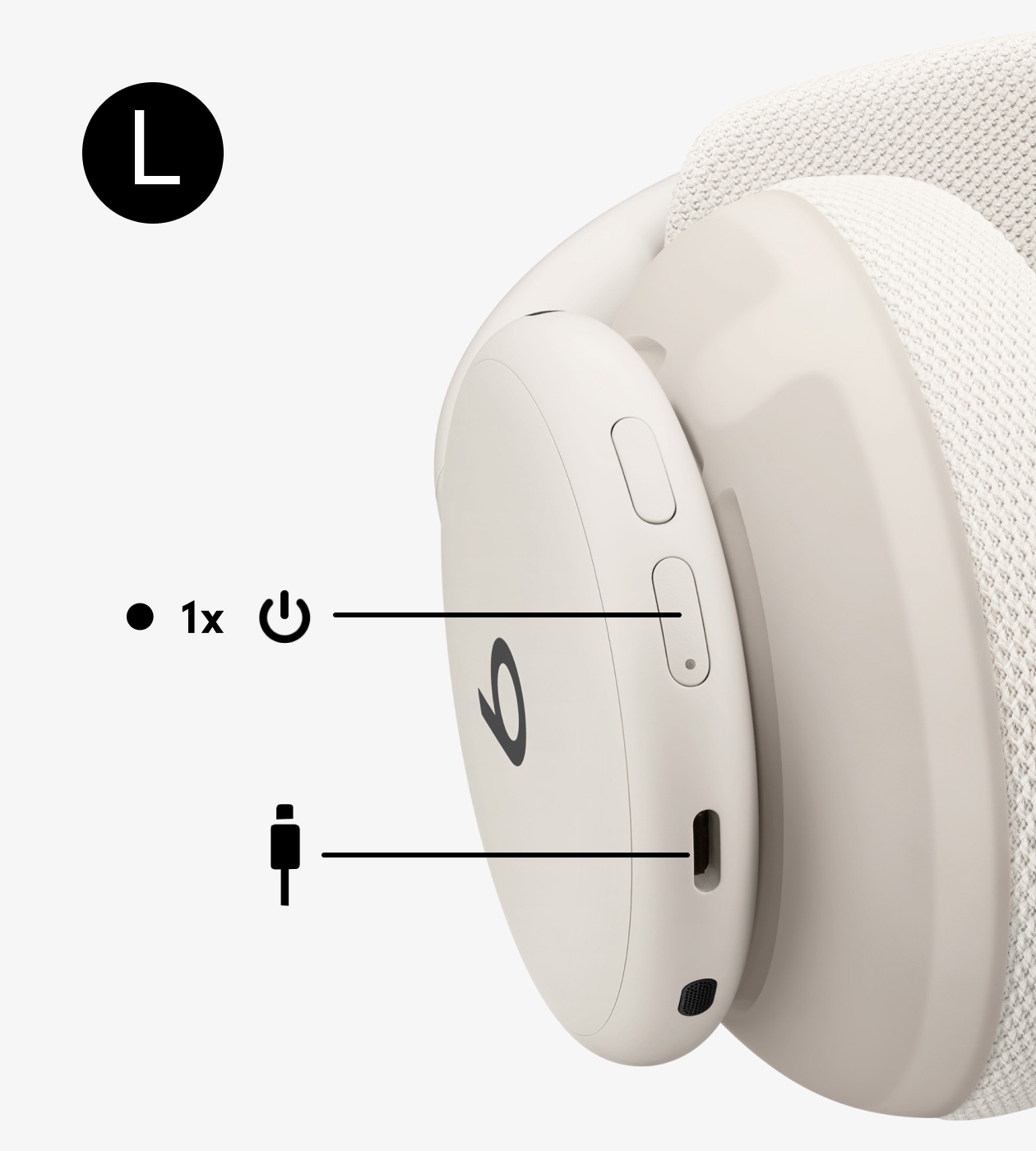
Power Button
Power on/off, pair with a device, and more.
Charge using the USB-C port at the base of the left earcup.
Power Button
Power on/off, pair with a device, and more.
Charge using the USB-C port at the base of the left earcup.
Power Button
Power on/off, pair with a device, and more.
Charge using the USB-C port at the base of the left earcup.

Listening Mode Button
Cycle between ANC and Transparency. Add Off (Adaptive EQ) to the cycle in device settings.
Listening Mode Button
Cycle between ANC and Transparency. Add Off (Adaptive EQ) to the cycle in device settings.
Listening Mode Button
Cycle between ANC and Transparency. Add Off (Adaptive EQ) to the cycle in device settings.
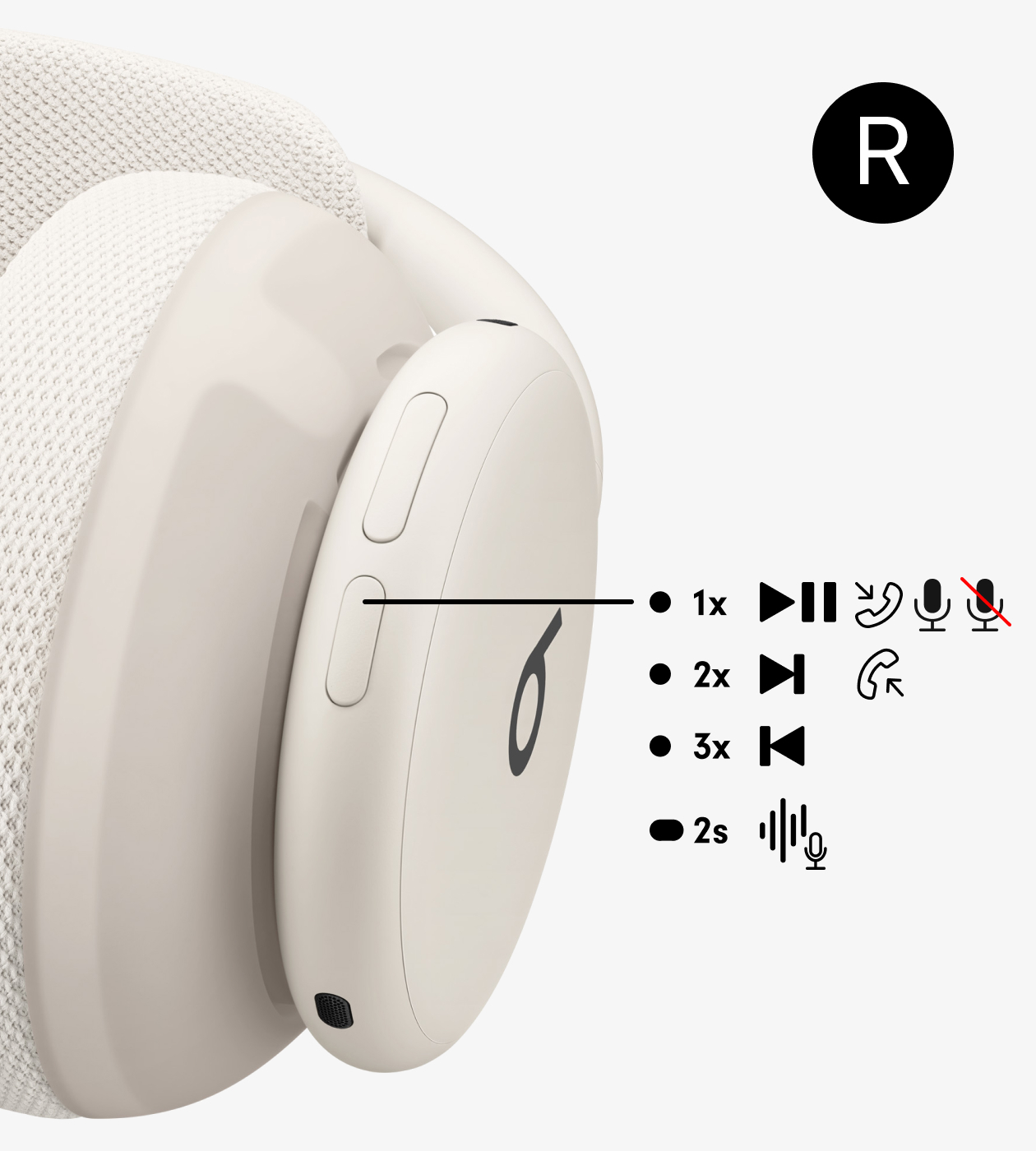
Play/Pause Button
Manage media playback, calls, and activate Siri or voice assistant.
Play/Pause Button
Manage media playback, calls, and activate Siri or voice assistant.
Play/Pause Button
Manage media playback, calls, and activate Siri or voice assistant.
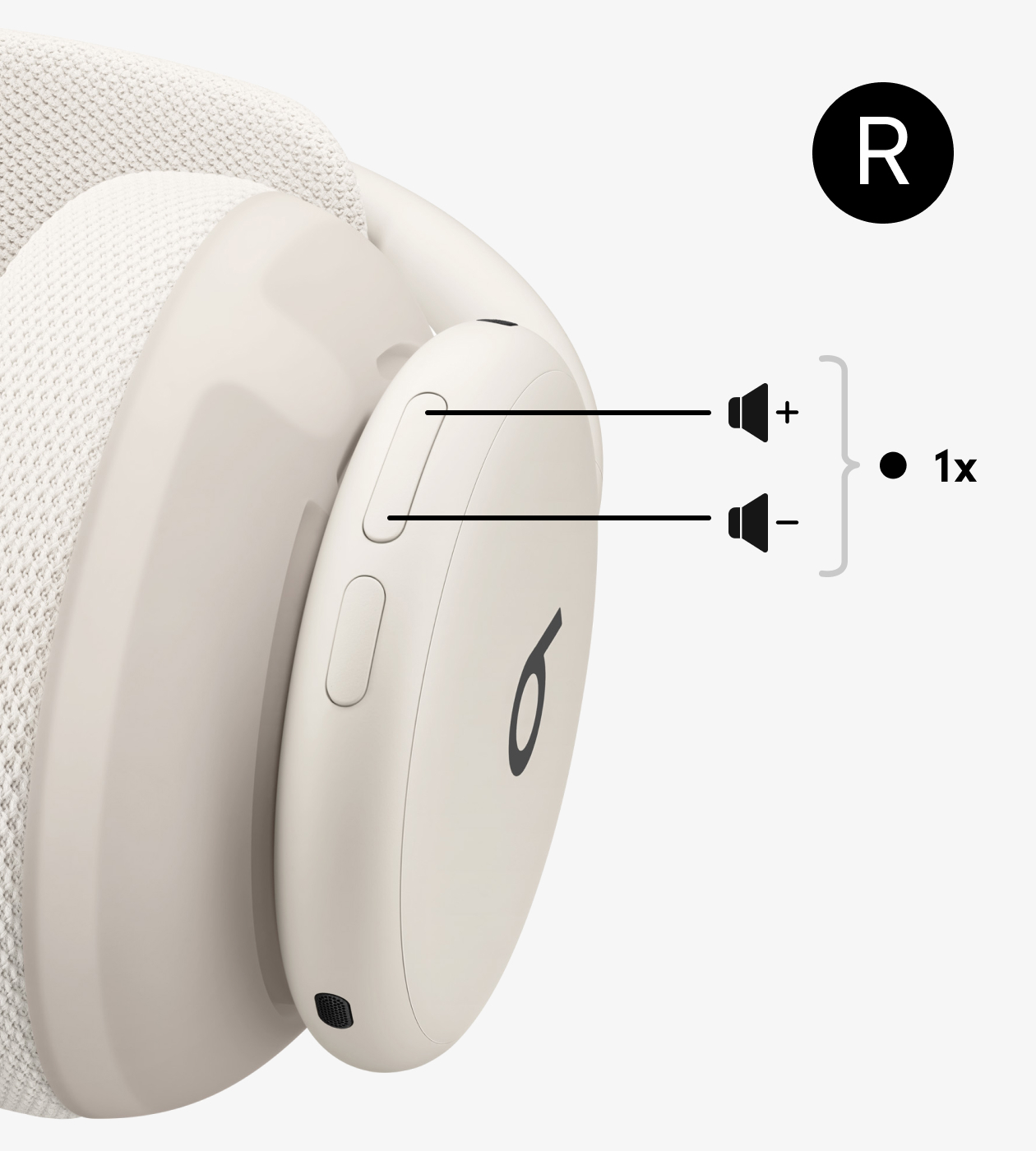
Volume Rocker
Control volume up or down.
Volume Rocker
Control volume up or down.
Volume Rocker
Control volume up or down.
Swap Your Cushions
Beats 360 has interchangeable cushion options for both earcups and headband. Additional Cushion Kits (sold separately) are available in multiple colors and materials — Performance Knit and UltraPlush. Performance Knit cushions have a breathable, airy feel ideal for workouts and extended comfort. UltraPlush cushions have a soft, seamlessly smooth finish and are also great for lasting comfort.
Ear Cushions:
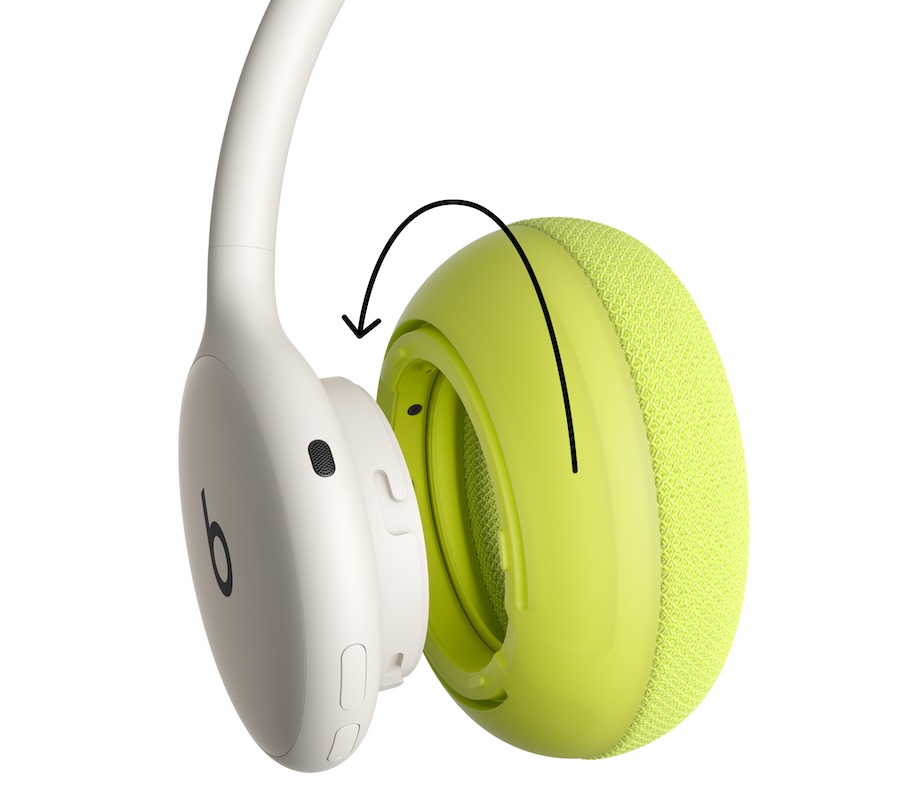
To remove, grasp ear cushion and rotate counterclockwise until the ear cushion releases, then lift away.
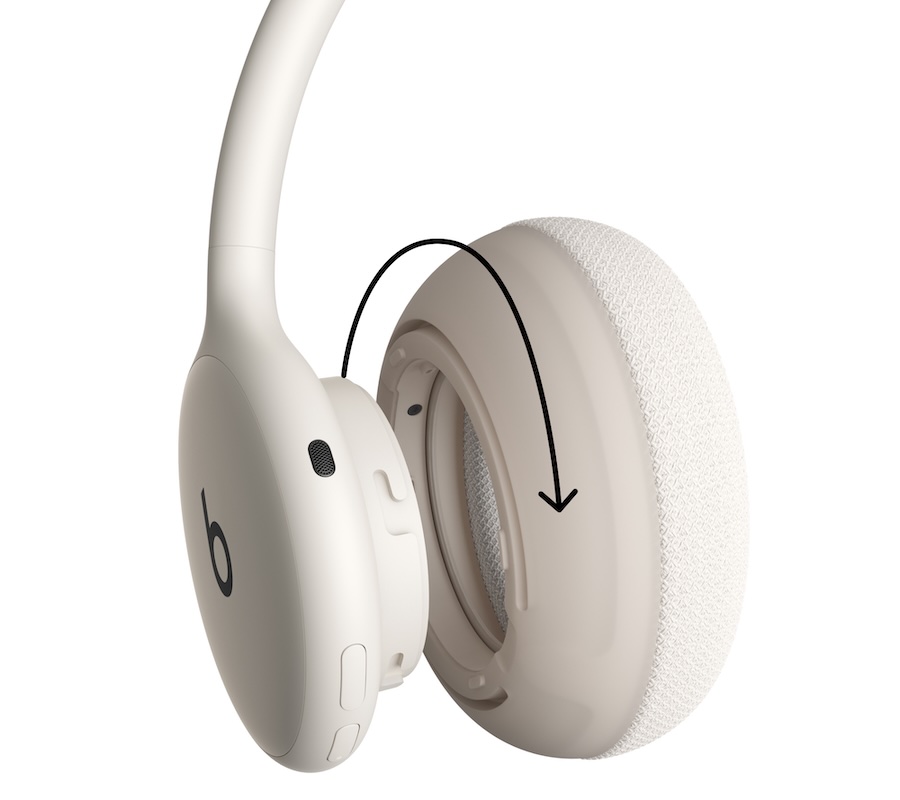
To attach, align ear cushion tabs to grooves alongside earcup, press lightly, and rotate cushion clockwise until ear cushion clicks into place.
Tip: If the headphones are powered on, a tone indicates the successful attachment of each ear cushion.
Headband Cushion:
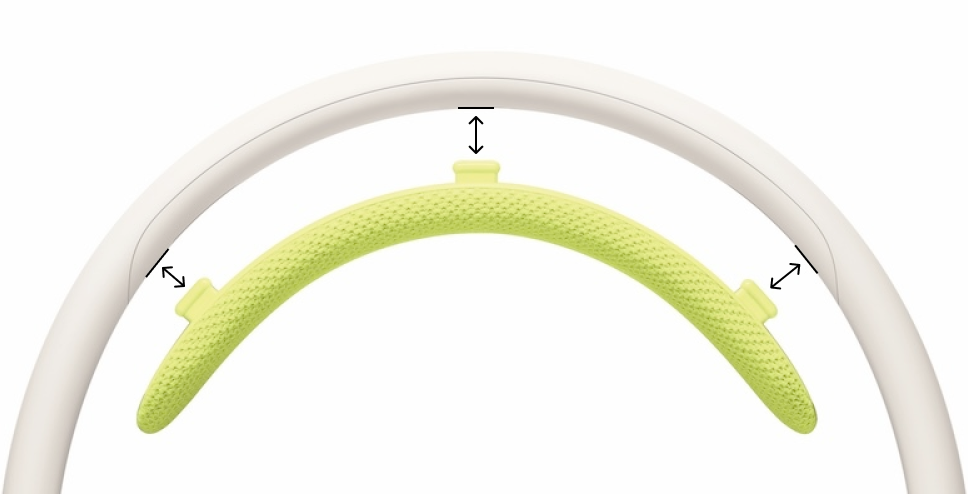
To remove, gently pull headband cushion down.
To attach, align headband cushion tabs to openings on the headband frame and snap into place.
Swap Your Cushions
Beats 360 has interchangeable cushion options for both earcups and headband. Additional Cushion Kits (sold separately) are available in multiple colors and materials — Performance Knit and UltraPlush. Performance Knit cushions have a breathable, airy feel ideal for workouts and extended comfort. UltraPlush cushions have a soft, seamlessly smooth finish and are also great for lasting comfort.
Ear Cushions:
To remove, grasp ear cushion and rotate counterclockwise until the ear cushion releases, then lift away.
To attach, align ear cushion tabs to grooves alongside earcup, press lightly, and rotate cushion clockwise until ear cushion clicks into place.
Tip: If the headphones are powered on, a tone indicates the successful attachment of each ear cushion.
Headband Cushion:
To remove, gently pull headband cushion down.
To attach, align headband cushion tabs to openings on the headband frame and snap into place.
Swap Your Cushions
Beats 360 has interchangeable cushion options for both earcups and headband. Additional Cushion Kits (sold separately) are available in multiple colors and materials — Performance Knit and UltraPlush. Performance Knit cushions have a breathable, airy feel ideal for workouts and extended comfort. UltraPlush cushions have a soft, seamlessly smooth finish and are also great for lasting comfort.
Ear Cushions:
To remove, grasp ear cushion and rotate counterclockwise until the ear cushion releases, then lift away.
To attach, align ear cushion tabs to grooves alongside earcup, press lightly, and rotate cushion clockwise until ear cushion clicks into place.
Tip: If the headphones are powered on, a tone indicates the successful attachment of each ear cushion.
Headband Cushion:
To remove, gently pull headband cushion down.
To attach, align headband cushion tabs to openings on the headband frame and snap into place.